How To Root Galaxy Y

Posted by Unknown Minggu, 21 April 2013 0 komentar

TUTORIAL
1. DOWNLOAD update.zip here: http://www.mediafire.com/?pd1dgeiwclxr1fz
2. Copy the downloaded file to your SD.(not inside any folder)
3. BOOT your device into RECOVERY MODE
(touch screen is disabled in recovery mode "to make a selection use VOLUME KEYs and use the HOME KEY in choosing a file or task")
4. Select "apply update from SD card" then choose update.zip
(wait until patch is completed) then your going back to the recovery menu.
5. Select "reboot system now".

To know if you successfully rooted your device go to the phone's main menu and if you have the application SUPERUSER your device is rooted.


Disclaimer: this video tutorial is for educational use only and I will not be responsible to any damage to your device.. Do it on your own risk.


Baca Selengkapnya ....

Google Now for Google's Homepage in Testing

Posted by Unknown 0 komentar
It looks like Google Now won't be limited to Android, iOS and Chrome, it will also be added to Google's homepage. Some code from a page that's tested by Google offers more information about this feature.

"Get started with Google Now. Just the right information at just the right time." That's how Google introduces the new feature. "Google Now uses your Home location to show relevant information like weather, traffic conditions, and nearby places," explains Google. You can edit the home location, work location and the current location. Another feature lets you track your favorite stocks.


It's not clear how Google Now for desktop will look, but this screenshot reveals a possible implementation (it's from a Chrome extension developed by Google):


Here's the Google Search app interface for Android tablets (Nexus 10 gallery):


As I mentioned here, Google Now could replace some of iGoogle's functionality. Here's an early version of iGoogle from 2006:


{ Thanks, F. }

Baca Selengkapnya ....

Add Google+ Comments to Any Web Page

Posted by Unknown 0 komentar
Until Google launches an API for the Google+ Comments feature, you can use the code from Blogger. Browsing the Net found a way to embed Google+ Comments on any website or blog. Here's the code you could use:

<script src="https://apis.google.com/js/plusone.js">
</script>
<div class="g-comments"
data-href="[URL]"
data-width="642"
data-first_party_property="BLOGGER"
data-view_type="FILTERED_POSTMOD">
</div>

Replace [URL] with the address of your page. If you enter the URL of a different page, Google shows some Google+ posts that link to that page and all the comments for that page. For example, if you enter the URL of this blog post, you'll see all the comments and Google+ messages from this page and you can also add a new comment.

It's important to keep in mind that this is an unofficial way to add Google+ Comments and Google can always change the code or remove some features.

{ Thanks, Jerzy. }

Baca Selengkapnya ....

Template proposals Not Working in Eclipse "No Default Proposals"

Posted by Unknown 0 komentar

while we are using Eclipse we may see that the default proposal are not appearing
when we press ctrl+space.This is due to some settings changes in the

Windows/preference/java/Editor/Content Assist/Advanced


If default proposal is not appearing go to
Windows/preference/java/Editor/Content Assist/Advanced
Then you will see a window like this..


Here you can check the apprpreate check boxes (java proposals)
Then coming back you can get the default proposals pressing ctrl+space


Baca Selengkapnya ....

Use Your Own SQLite in ANDROID Application or Using 'SQLite Asset Helper' to read your own databases stored in Asset folder

Posted by Unknown 0 komentar

See more basics on Android along with interview questions

See SQLite tutorial here

If you want to read your own databases in ANDROID APPLICATION, this post may help you.

You may be familiar by creating SQLite in Android use  SQLiteOpenHelper .

Here we are going to deal with using our own databases. 

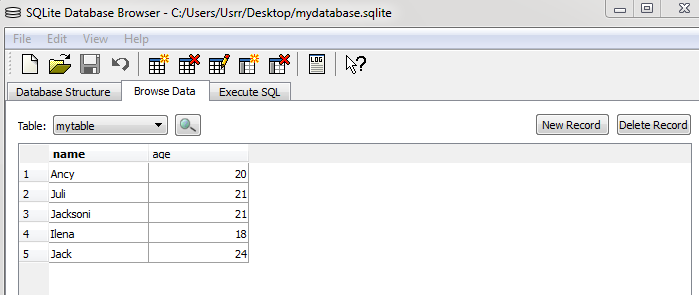
I have a database named 'mydatabase.sqlite', which consist of a set of name and age of 5 students.

Suppose I want to view the database, I can use SQLite database browser which you can download from here.
                                                  download browser.....

Through this browser we can view the databases, can even modify delete or create a new one.
'mydatabase.sqlite' with name and age of five students is browsed and viewed as shown below


Now  make a zip format of database and copy this database to asset/databases
Also copy 'android-sqlite-asset-helper.jar' into the lib folder.


                                                         download jar.....

Make sure that you copy only zip format to asset folder or else it will not read database.
Now I'am going to load the database contents to a listview. The java source code is given below.

In SqliteAssetHelper.java 


public class SqliteAssetHelper extends ListActivity {

private Cursor students;
private MyDatabase db;

@Override
public void onCreate(Bundle savedInstanceState) {
super.onCreate(savedInstanceState);

db = new MyDatabase(this);
students = db.getEmployees(); // you would not typically call this on the main thread

ListAdapter adapter = new SimpleCursorAdapter(this,
android.R.layout.simple_list_item_2,
students,
new String[] {"name","age"}, //table values
new int[] {android.R.id.text1,android.R.id.text2});

getListView().setAdapter(adapter);
}

@Override
protected void onDestroy() {
super.onDestroy();
students.close();
db.close();
} }
In MyDatabase.java
public class MyDatabase extends SQLiteAssetHelper {

private static final String DATABASE_NAME = "mydatabase";
private static final int DATABASE_VERSION = 2;

public MyDatabase(Context context) {
super(context, DATABASE_NAME, null, DATABASE_VERSION);
}

public Cursor getEmployees() {

SQLiteDatabase db = getReadableDatabase();
SQLiteQueryBuilder qb = new SQLiteQueryBuilder();

String [] sqlSelect = {"0 _id","name","age"};
String sqlTables = "mytable";

qb.setTables(sqlTables);
Cursor c = qb.query(db, sqlSelect, null, null,
null, null, null);

c.moveToFirst();
return c;

} }

Baca Selengkapnya ....

Gapless Internet and Google Fiber

Posted by Unknown Sabtu, 20 April 2013 0 komentar
"A gapless album is a type of album in which some or all of the tracks are intended to be heard seamlessly without any pause. Instead of individual tracks being separated by a brief moment of silence, each transitions directly into the next track without a pause in the sound," informs Wikipedia.

Hunter Walk, a former Google employee, tries to explain why Google Fiber makes sense for Google:

When you play with it, the gap between you and Internet totally disappears. The computer is responsive in a manner that I've never experienced before. (...)

People ask me what's Google's metagame with Fiber. My guess is the following: Use Fiber to reset consumer expectations of what a connected home should feel like. Continue to drive down the cost of deployment and sign up customers for a very sticky (high LTV) service by being first to market. If existing ISPs follow - or even beat Google in some many markets - Google still wins. Why? Because as I found out personally, when the Internet is this fast you do one more search per session, watch one more video per session, send one more email per session. A connected population benefits Google.

Just like SPDY, Google DNS, PageSpeed, Google Fiber is all about making the web faster. When pages load almost instantly, interacting with the web is seamless. There's no "brief moment of silence" while waiting for the next page to load.

Baca Selengkapnya ....

Google Now Is Not Google Voice Search

Posted by Unknown 0 komentar
Here's something I don't understand: why do so many people confuse Google Now with Google Voice Search? There are a lot of articles that compare Google Now with Siri or claim that Google Now is a voice assistant.


Google Now is a feature of the Google Search app for Android that shows information about what's happening right now or in the near future: weather, calendar events, reservations, travel information. Try this: disable Google Now in Google's search app and you can still use voice search. After all, Google Voice Search has been available before Google Now. Google Search for iOS includes Voice Search, but it doesn't have Google Now yet.

One of the explanations why many people confuse Google Now with Google Voice Search is that Google Now and the improved Voice Search have been announced at the same time, when Jelly Bean was released. Google Now is shorter and sounds better than Google Voice Search.

Even the Wikipedia article for Google Now is inaccurate: "Google Now is an intelligent personal assistant available for Google's Android operating system. An extension of Android's native Google Search application, Google Now uses a natural language user interface to answer questions, make recommendations, and perform actions by delegating requests to a set of web services. Along with answering user-initiated queries, Google Now passively delivers information to the user that it predicts they will want, based on their search habits."


Baca Selengkapnya ....
Trik SEO Terbaru support Online Shop Baju Wanita - Original design by Bamz | Copyright of android populer.